 Subtitle Translator
Install Subtitle Translator
On a phone? Browser extensions only work on a computer. Open subtitles.pixdream.net/install on your computer to install it.
- File
- subtitle-translator-1.1.7.zip (50 kB)
- Released
- 20 October 2026
- Made by
- PixDream
- SHA-256
7ff2cfe0cc0eed91830917e5a482b2517c0362419ad054d8cfc9175a17750ca7
The zip contains only the extension's own HTML, CSS, JavaScript and icon files. They are plain text you can open and read. There is no installer and no .exe, and nothing runs outside your browser.
Step by step
-
Download and unzip
Download the file above, then unzip it. On Windows, right-click the zip and choose Extract All… and then Extract. On a Mac, double-click the zip.
Put the subtitle-translator folder somewhere it can stay, for example in Documents. The browser runs the extension from this folder, so don't delete it afterwards.
Documents › subtitle-translator-1.1.7 › subtitle-translator- _locales
- icons
- popup
- src
- manifest.json
- README.txt
This is the folder you will choose in step 4: the one where you can see manifest.json.
-
Open the extensions page
Type this in the address bar and press Enter:
chrome://extensionsEdge:
edge://extensions· Brave:brave://extensions· Opera:opera://extensions. Browsers don't let websites link to this page, so it has to be typed. -
Turn on Developer mode
The switch is in the top-right corner. In Edge it is in the menu on the left.

-
Click "Load unpacked" and choose the folder
Choose the subtitle-translator folder from step 1, the one that contains manifest.json, and confirm. Windows usually puts it inside a folder called subtitle-translator-1.1.7, so open that one first.

-
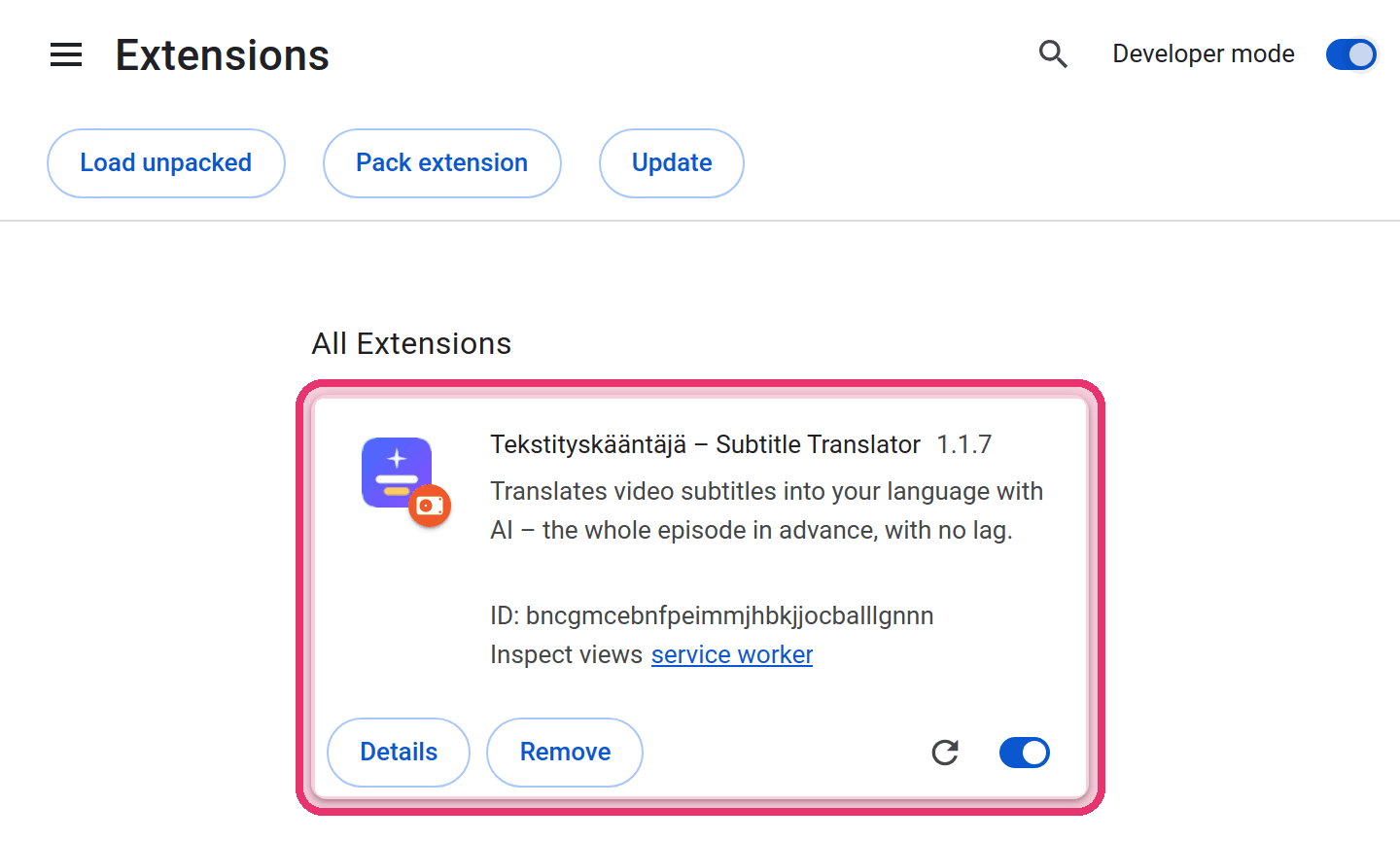
Done: pin it to the toolbar
Subtitle Translator now appears in your extensions. Click the puzzle-piece icon next to the address bar and then the pin next to Subtitle Translator, so its icon is always visible.
-
Watch something
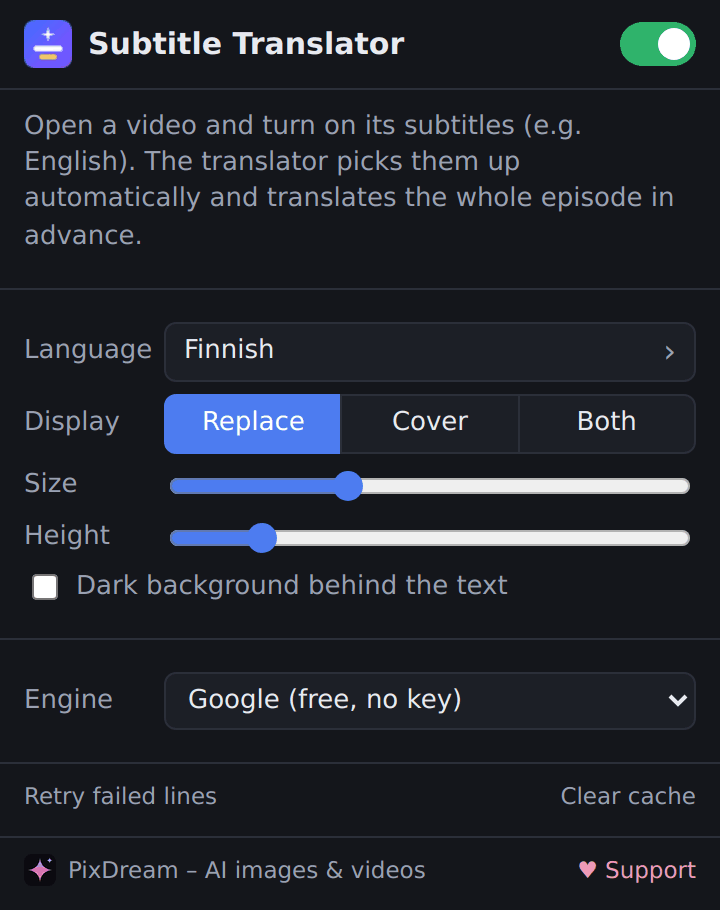
Open a video and turn on its subtitles, for example English. The translation appears on the video within a few seconds. Click the extension's icon to choose your language and how the subtitles look.
Is it safe?
You can read every file
The extension is plain JavaScript, HTML and CSS. It never downloads or runs code from the internet.
Why it asks for all websites
Chrome lists the permission "Read and change all your data on all websites". The extension needs it because videos are on countless sites. It only looks for subtitle files and discards everything else immediately.
No account, no tracking
Only the subtitle text you translate is sent to the translation service you choose. Read the privacy policy.
If something goes wrong
"Manifest file is missing or unreadable"
The wrong folder was chosen. Choose the subtitle-translator folder where you can see manifest.json directly inside. If you chose subtitle-translator-1.1.7, open it and choose the subtitle-translator folder inside.
The extension stopped working or disappeared
The folder was probably moved or deleted. Put it back, or load it again with "Load unpacked". Leave Developer mode on while you use the extension.
How do I update to a new version?
Download the new zip from this page and replace the files in your subtitle-translator folder with the new ones. Then open chrome://extensions and click the round arrow ↻ on Subtitle Translator. Your settings are kept.
How do I remove it?
Click Remove on the extension in chrome://extensions, then delete the folder.
Does it work on a phone or TV?
No. Browser extensions only work in a desktop browser on a computer.